
Short version: update now, or maybe later (but probably now)
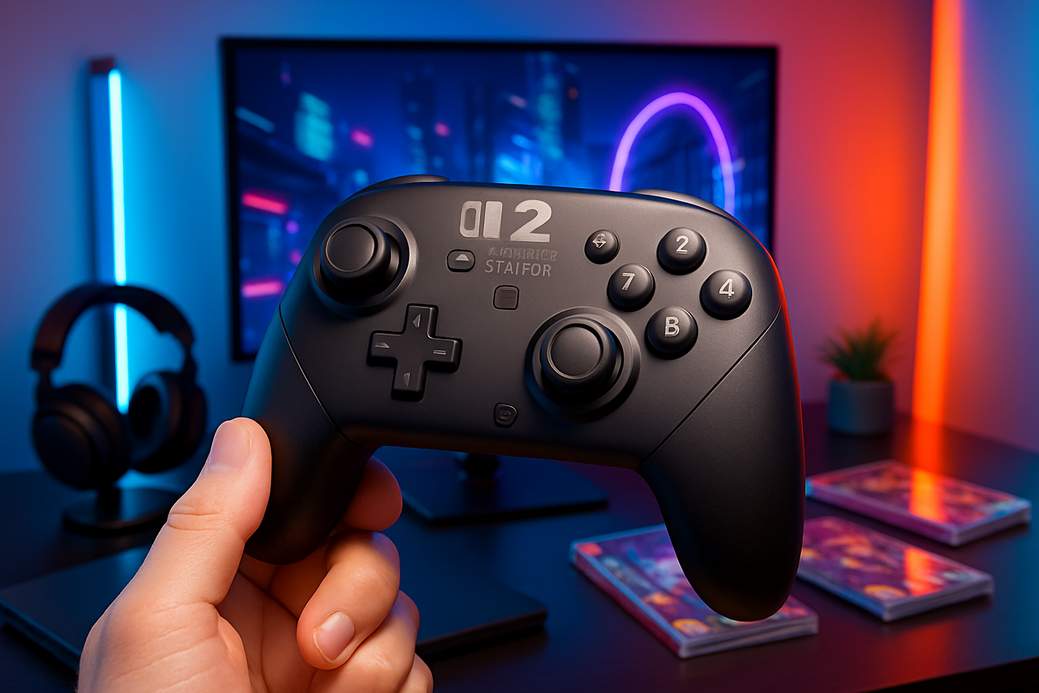
Nintendo pushed a new system firmware that also includes a fresh update for the Switch 2 Pro Controller. If your console hits the latest system version, your controller might still need a little nudge from you to get the new goodies.
How to make the controller update (easy steps)
After your console is on the newest firmware ( Version 21.0.0 ), hop into the HOME Menu, open System Settings, then go to Controllers & Accessories. From there you can check for and apply controller updates — your Pro Controller 2 should download and install the patch.
What this update actually does (short and sweet)
The main addition affects audio options for a wirelessly connected Switch 2 Pro Controller. You now get to pick between two audio modes: “Stable” or “Low Latency.”
Stable vs Low Latency — which one should you pick?
Stable mode is the safe, chill choice: fewer dropouts and less drama in noisy wireless environments. Low Latency is the speed demon — it trims audio delay so sound lines up better with gameplay, but it might be fussier and more susceptible to interference in busy wireless spaces. Pick your poison based on whether you hate audio lag or you hate crackles more.
Why bother updating?
Besides the minor bragging rights of having the freshest firmware, this update improves how audio behaves with your Pro Controller 2 and gives you control over latency. It’s quick, painless, and might actually make your games feel snappier — so go do it and get back to winning (or spectacularly failing) in style.
Final tip
If the controller update doesn’t start automatically after the system firmware is applied, manually trigger it from Controllers & Accessories — it’s the most satisfying two-minute tech chore you’ll do today.